
Get to Know SentryWatch's Features
-
Channel ID collection for all channel registrations and reconnects.
-
Channel ID collection is required in order for SentryWatch to work. The term Channel ID is the information we need in order to send a message to a specific channel. Turning on Channel ID is the setting for a customer account that will start to save the required information for each channel during channel registration.
-
-
Enable and Configure SentryWatch

- Inactivity Configuration: The maximum amount of time your organization wants to allow a channel to go without message activity before triggering a health check message. Customer admins can choose to set the period of days or weeks.
- SnippetSentry recommends 4-7 days.
- For iMessage, SentryWatch tracks SMS activity (green bubbles) separate from iMessage activity (blue bubbles). Meaning if a user has no SMS activity but still has iMessage activity, SentryWatch will trigger a health check for SMS messages.
- For WhatsApp, SentryWatch tracks message activity and sends a health check message weekly to prevent automatic disconnections. Historically, WhatsApp will automatically disconnect after two weeks of inactivity; SentryWatch's health check messages will help mitigate these disconnections.
Alerting Configuration
- Enable or Disable User Notifications
- When enabled, a user with an unhealthy channel will receive an email notification.
- Persistent Alerts
- This is a setting that the customer can configure that will continue to send the notification email to users until the channel is determined to be healthy again.
- Alert Message Interval: This is the period of time between persistent notifications. It must be at least 1 day.
- Admins will always get 1 notification email per user with an unhealthy channel at the time that an unhealthy channel is determined.
- Changes to the Channel Registration Flow
- Display a new step during channel registration for Message Opt in.
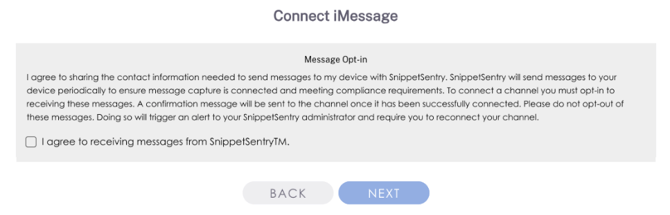
- Display a new step during channel registration for Message Opt in.
-
- After channel registration/reconnect, the user will receive a text message from SnippetSentry.
- From iMessage channels, the message will look like this:
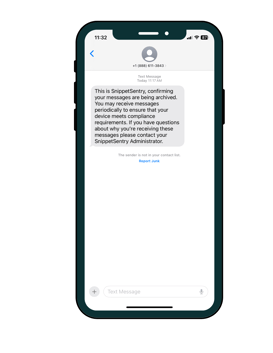
- For WhatsApp channels, the message will look like this:
.png?width=275&height=356&name=Untitled%20design%20(3).png)
- From iMessage channels, the message will look like this:
- After channel registration/reconnect, the user will receive a text message from SnippetSentry.
- How it works
- Users that have an inactive channel will receive a health check message.
- For iMessages the health check message will be:
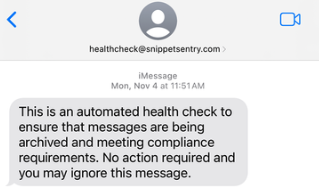
- For iMessages the health check message will be:
- Users that have an inactive channel will receive a health check message.
-
-
- For SMS forwarding the health check message will be:
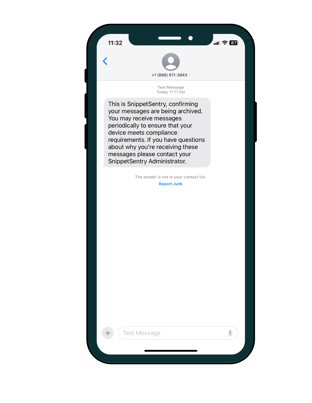
- For WhatsApp, the health check message will be:
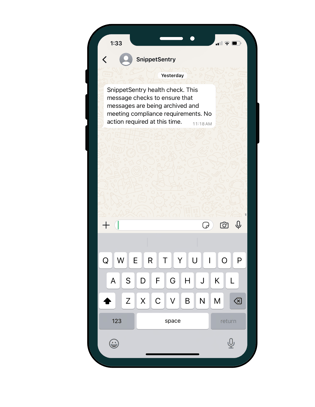
- For SMS forwarding the health check message will be:
-
-
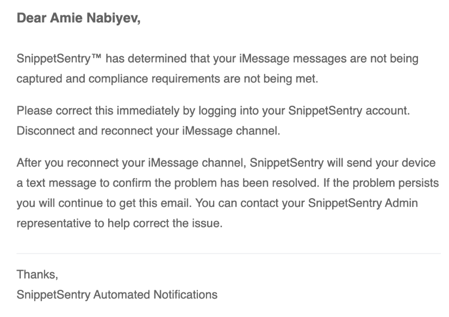
- If the health check message does not update the activity for that channel, the admin and the end user (if enabled) will receive an email notification:
-
- If you have configured persistent notifications, users will continue to receive emails until their channel is fixed.
- How to make a channel healthy again
- When an iMessage channel is unhealthy, typically the best way to fix is to disconnect and connect again on the dashboard. Also, make sure the user is signed into iMessage on their device.
- When SMS forwarding is unhealthy, the user needs to follow the SMS forwarding steps explained during channel registration. Once that is complete, the user needs to send or receive a SMS message. This can be as simple as replying to the SnippetSentry Health Check message.
- Troubleshooting Text Message Forwarding
- When a WhatsApp channel is unhealthy, the user needs to disconnect and reconnect on the dashboard again.
- When an iMessage channel is unhealthy, typically the best way to fix is to disconnect and connect again on the dashboard. Also, make sure the user is signed into iMessage on their device.