
Step 1: Turn Off and On iMessage
- Open the Settings app on your iPhone.
- Scroll down and tap on Messages.
- Toggle off the iMessage switch.
- Close the Settings app completely.
- Reopen the Settings app and return to Messages.
- Toggle the iMessage switch back on.
Step 2: Ensure iCloud ID is Selected
- In the Settings app, click on Settings > Messages > Send & Receive. Ensure that iMessage is enabled from Step 1 or you may not see Send & Receive settings
- In the top box, make sure both your phone number and iCloud ID are listed and selected
- In the bottom box, make sure your iCloud ID is selected. If not, select it. Your settings should look similar to the settings in here:
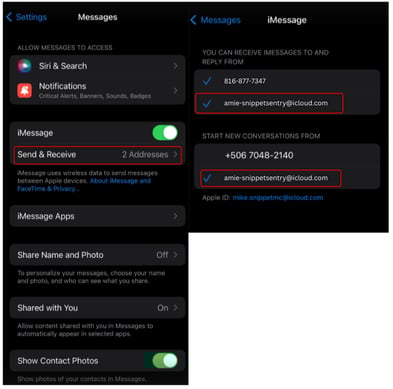
- Ensure that the AppleID being used in these settings matches the AppleID being used for registration
Step 3: Check for Text Message Forwarding Option
- Go back to the Settings app and tap on Messages.
- Look for the Text Message Forwarding option. If it still does not appear, ensure that your iCloud ID is properly selected and that you are logged in with the correct Apple ID.
- If it is still not appearing, wait 45-60 minutes and restart your device
Following these steps should help resolve the issue and enable the Text Message Forwarding option on your iPhone.